Physical Address
304 North Cardinal St.
Dorchester Center, MA 02124
Physical Address
304 North Cardinal St.
Dorchester Center, MA 02124

Your Own Cloud. Your Own Rules. We'll Show You How.
Your Own Cloud. Your Own Rules. We'll Show You How.
Last updated: June 11, 2026
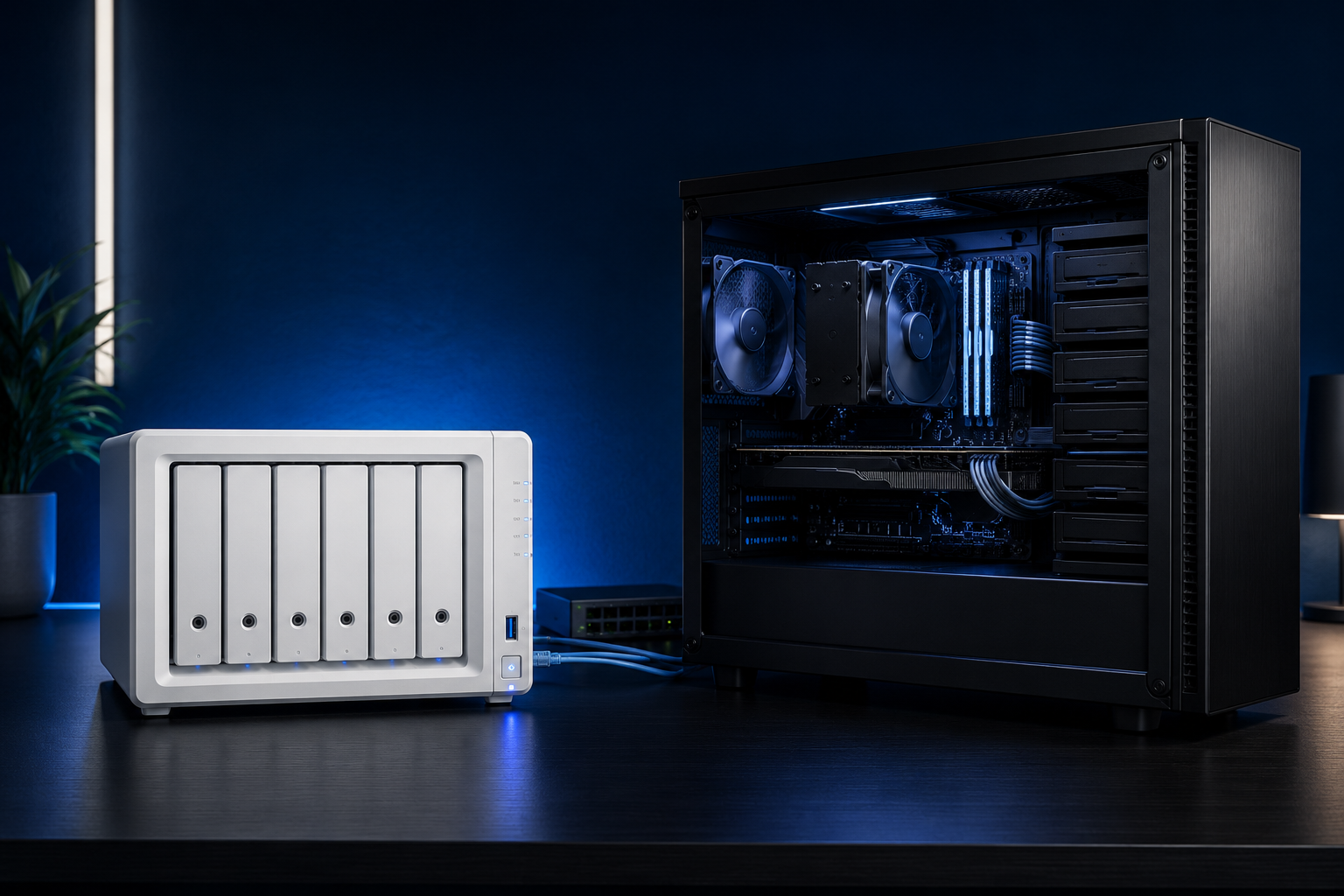
A NAS (Network Attached Storage) is a plug-and-play storage appliance designed for simplicity, while a home server is a custom-built or repurposed computer that offers far greater flexibility. For most first-time buyers in 2026, a NAS is the faster, easier path to centralized home storage. Those who need more processing power, want to run multiple services, or enjoy tinkering will get more value from a home server.
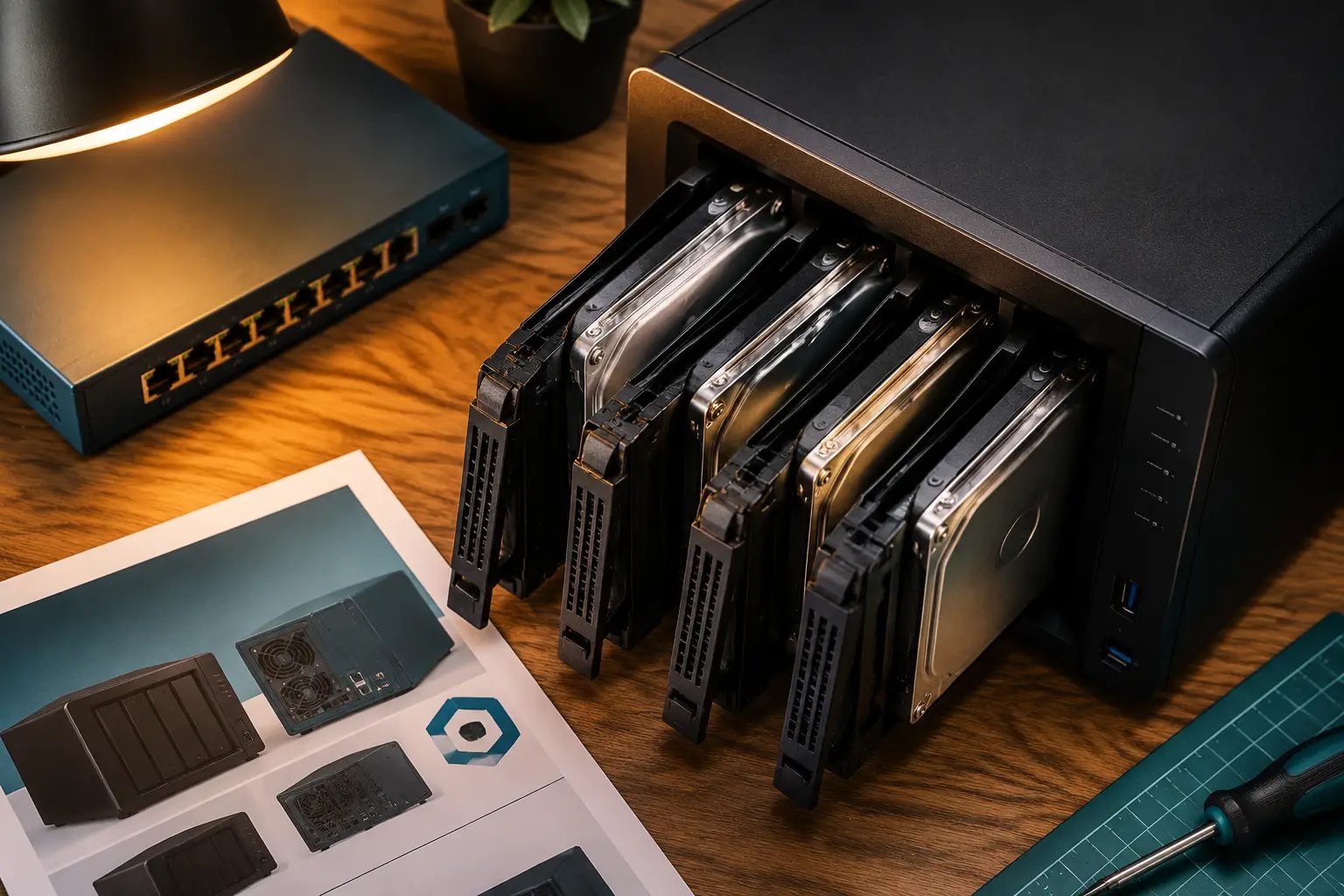
A NAS is a dedicated storage appliance that connects to your home network and serves files to other devices. A home server is a general-purpose computer running an OS like Ubuntu Server, Windows Server, or TrueNAS SCALE that can store files and run additional applications simultaneously.
Key distinctions at a glance:
| Feature | NAS | Home Server |
|---|---|---|
| Setup difficulty | Low (guided wizard) | Medium to High |
| OS flexibility | Locked to vendor OS | Any OS you choose |
| Expandability | Limited by chassis | Near-unlimited |
| Power consumption | 15-30W typical | 50-150W+ typical |
| Upfront cost | $150-$500+ (no drives) | $300-$800+ (DIY build) |
| Ideal user | Beginners, families | Enthusiasts, developers |
The core difference in the NAS vs home server debate comes down to purpose. A NAS is optimized for one job: storing and sharing files reliably with minimal maintenance. A home server is a blank canvas.
For most people, a NAS has a lower upfront cost but can become expensive as you add drives and expand capacity. A home server built from used enterprise hardware can be cheaper per terabyte at scale.
Typical beginner NAS costs (2026 estimates):
Typical beginner home server costs:
Choose a NAS if budget predictability and warranty support matter. Choose a home server if you’re comfortable sourcing used hardware and want lower long-term cost per terabyte.
The NAS vs home server choice is ultimately a trade-off between convenience and control.
NAS pros:
NAS cons:
Home server pros:
Home server cons:
“The right choice depends less on technical skill and more on how much time you want to spend maintaining the system.”
Yes, a NAS can handle media streaming well, but gaming has important limitations. For media storage and streaming to Plex or Jellyfin, a mid-range NAS with hardware transcoding support (available on Synology Plus-series and QNAP units with Intel QuickSync) handles 1080p and 4K content reliably. For game server hosting or high-frequency game library access, a home server with a dedicated CPU is a better fit.
Media use case summary:
Synology and QNAP are the two most recommended brands for home NAS setups, and for good reason. Synology’s DiskStation Manager (DSM) OS is widely considered the most polished consumer NAS interface available. QNAP offers more hardware variety and often includes better built-in multimedia features.
Top picks for beginners:
Avoid no-name brands without active firmware support. Security patches matter more than price savings on a device that sits on your network 24/7.
Most first-time NAS buyers underestimate how quickly storage fills up. A practical starting point is to calculate your current data footprint (photos, videos, documents, backups) and multiply by 2.5 to account for growth and RAID overhead.
Storage estimates by household type:
Start with a 4-bay enclosure even if you only populate two drives initially. This gives room to grow without buying new hardware.
A NAS from Synology or QNAP is genuinely manageable for non-technical users. The setup wizard walks through network configuration, user accounts, and drive formatting in under 30 minutes. A home server running TrueNAS SCALE or Ubuntu Server requires comfort with command-line tools and network configuration, which is a steeper learning curve.
Honest assessment: If someone struggles with router settings or has never used a terminal, a NAS is the right choice. If someone has set up a Raspberry Pi or configured a home lab before, a home server is within reach.
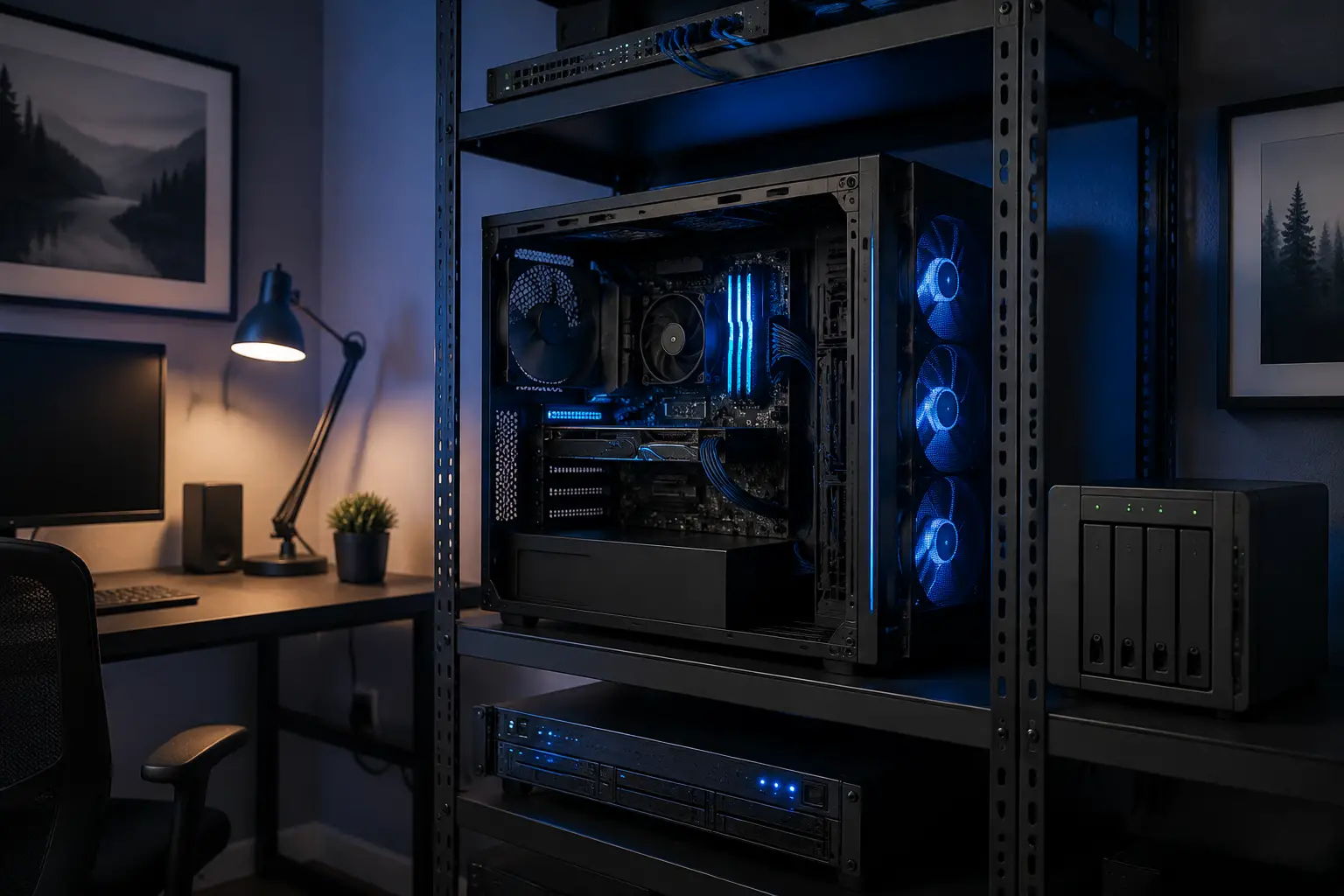
NAS devices are frequent ransomware targets, and both Synology and QNAP have experienced high-profile attacks in recent years (QNAP’s QLocker ransomware campaign in 2021 affected thousands of users, per QNAP’s own security advisories). That said, a properly hardened NAS is reasonably secure.
Essential security steps for any NAS:
A home server requires the same steps but demands more manual effort since there’s no automated update wizard.
The single most common mistake is treating RAID as a backup. RAID protects against drive failure, not accidental deletion, ransomware, or fire. Both NAS and home server users need a separate offsite backup.
Other frequent mistakes:
For most home users, a Synology NAS is easier to maintain and more reliable out of the box. For users who want to run Docker containers, virtual machines, or custom applications beyond Synology’s package ecosystem, an Ubuntu home server with TrueNAS SCALE or Proxmox offers more control.
Choose Synology if: you want a set-and-forget storage solution with a polished UI and strong mobile apps.
Choose Ubuntu/TrueNAS if: you want to self-host services like Nextcloud, Bitwarden, or Home Assistant alongside your storage, and you’re comfortable with Linux administration.
Yes. Both NAS devices and home servers support remote file access, and this is one of the strongest use cases for either solution. Synology’s QuickConnect feature allows access to files from anywhere without port forwarding. Home servers can achieve the same with a Tailscale or WireGuard VPN setup.
For remote work file sharing with colleagues, a NAS running Synology Drive or a home server running Nextcloud provides a private alternative to Google Drive or Dropbox.
What internet speed do you need? A standard 100 Mbps upload connection handles remote file access and video streaming comfortably. For uploading large files remotely (video projects, backups), 500 Mbps or more upload speed improves the experience significantly.
What is the main difference between a NAS and a home server? A NAS is a purpose-built storage appliance with a simplified OS. A home server is a general-purpose computer that can run storage software alongside other applications. NAS devices are easier to set up; home servers are more flexible.
Is a NAS worth it for a single person? Yes, even for a single user. A 2-bay NAS provides centralized backup for all devices, automatic photo syncing, and remote file access for under $400 total. The convenience justifies the cost for anyone with more than 1 TB of data to manage.
Can a NAS replace a cloud subscription like Google Drive? For local and remote file access, yes. A NAS with Synology Drive or a home server running Nextcloud replicates most cloud storage features. However, cloud services provide geographic redundancy that a home NAS cannot match unless paired with an offsite backup.
How long does a NAS last? NAS enclosures typically last 5-10 years. Drives should be replaced every 3-5 years based on SMART data. Synology supports older hardware with software updates for approximately 5-7 years after release.
Do I need a static IP for a home NAS? No. Most NAS devices work with dynamic DNS services that update automatically when your IP changes. A static IP improves reliability but is not required.
What is the best OS for a DIY home server? TrueNAS SCALE is the top choice for storage-focused builds due to its ZFS file system, web UI, and Docker/VM support. Proxmox is better if virtualization is the primary goal. Ubuntu Server suits users who prefer a traditional Linux environment.
Can a NAS run Plex Media Server? Yes, but performance depends on the hardware. Synology Plus-series and QNAP units with Intel QuickSync can transcode 1-2 simultaneous 4K streams. Budget NAS models struggle with transcoding and work best when clients support direct play.
Is it safe to connect a NAS to the internet? With proper configuration (VPN access, 2FA, no exposed admin ports), yes. Directly exposing NAS admin interfaces to the internet without these protections is a significant security risk based on documented attack campaigns against both Synology and QNAP devices.
The NAS vs home server decision in 2026 comes down to three factors: how much time you want to spend on setup and maintenance, what workloads you need to run, and your budget.
Actionable next steps:
Both solutions solve the same core problem: keeping your data organized, accessible, and protected. The best choice is the one you’ll actually set up and maintain.